
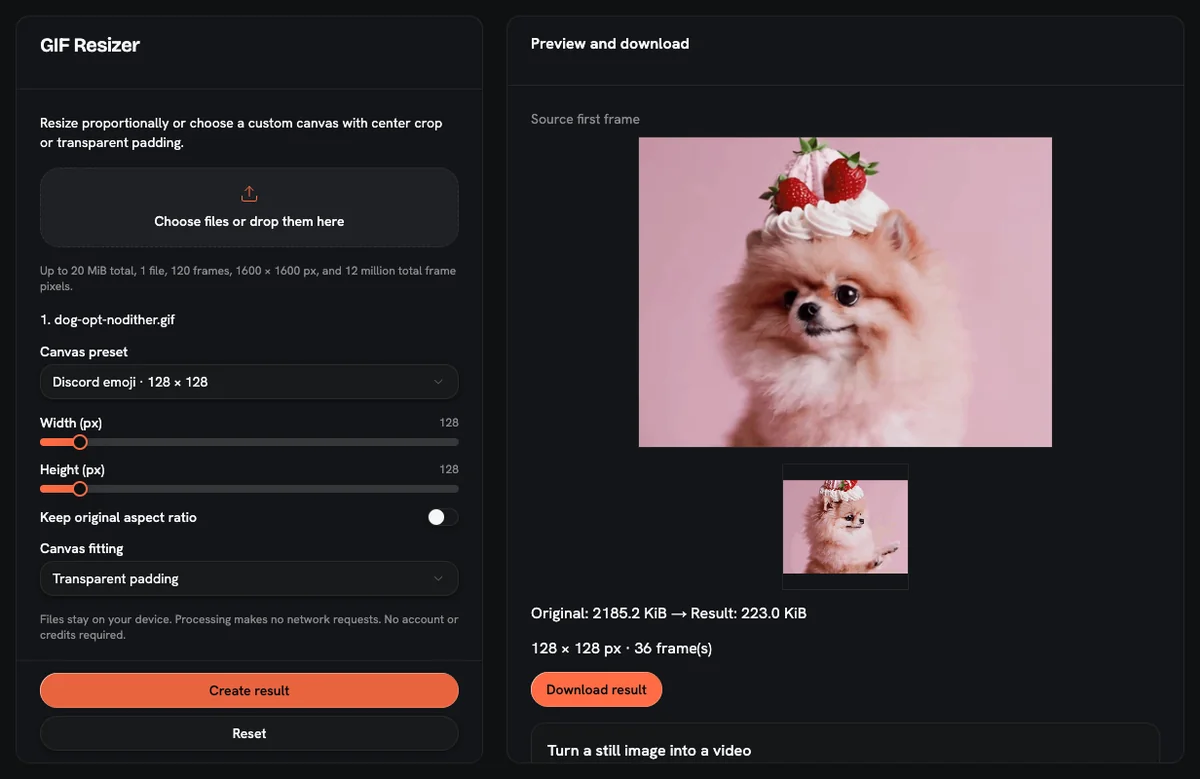
Resize the GIF to a square 128 × 128 canvas, then cut colors and frames until the file is under 256KB. Discord's help center says custom emoji files must be smaller than 256KB, and animated emoji must be GIFs. The same page lists no pixel size, so 128 × 128 is what our Discord preset outputs, not a Discord requirement.
Pixel size and file size are two separate problems. The GIF resizer fixes the first one in a single click with its Discord preset. The second one usually needs the GIF compressor, because a 128 × 128 GIF with many frames can still weigh more than 256KB.
Both tools are free, need no account or credits, and process your GIF on your own device without uploading it.
Quick answer: settings for a Discord emoji GIF
| Goal | Tool | Settings to use |
|---|---|---|
| Square emoji canvas | GIF resizer | Preset: Discord (128 × 128) |
| Keep the whole image | GIF resizer | Fit: contain (transparent edges) |
| Fill the square, lose the edges | GIF resizer | Fit: cover (center crop) |
| First size cut | GIF compressor | Colors 64, keep every 2nd frame, scale 100% |
| Still over 256KB | GIF compressor | Colors 32, then keep every 3rd frame |
| Transparent background | GIF background remover | Auto color on, tolerance 30 |
Why a tiny GIF can still be over 256KB
A GIF stores every frame as its own picture. Each frame carries its own pixel data, drawn from a palette of up to 256 colors. File size therefore grows with three things: pixel area, frame count, and how many colors the frames use.
Shrinking the canvas to 128 × 128 only cuts the first of those three. A long reaction loop with dozens of frames, film grain, or smooth gradients can stay heavy at any pixel size. That is why people see Discord reject a GIF that already looks tiny on screen: Discord's limit is in kilobytes, not pixels.
So fix the dimensions once, then work on frames and colors until the size readout drops under 256KB.
Step by step: resize first, then shrink
- Check the source file. The GIF tools accept GIF files up to 20 MB, 120 frames, and 1600 px on each side, with no more than 12 million pixels across all frames. A 640 × 480 clip with 40 frames already passes that pixel total, so shrink the canvas or cut frames in a video or GIF editor first.
- Remove the background if you want transparency. Use the GIF background remover before resizing, with auto color on and the default tolerance of 30. Raise the tolerance in small steps if a colored fringe remains. The background removal guide covers tolerance and edge problems in detail.
- Open the resizer and pick the Discord preset. The preset sets the output to exactly 128 × 128 and switches off the aspect-ratio lock.
- Choose contain or cover. Contain is the default and fits the whole frame inside the 128 × 128 square with transparent bars. Cover centers the image and crops whatever sticks out.
- Create the result and download it. The original loop setting carries over, and each frame keeps its timing to 1/100 of a second.
- Check the file size. If the downloaded file is under 256KB, it is ready to upload.
- If it is over 256KB, open the compressor. Set scale to 100% first, because the default of 75% would shrink your 128 × 128 emoji to 96 × 96. Keep colors at 64 and keep every 2nd frame.
- Read the before and after sizes. Still too heavy? Lower colors to 32, then move to keeping every 3rd frame. Change one control per run so you can see which one saved bytes.
Dropped frames are not lost time. The compressor adds each removed frame's delay to the frame it keeps, so the loop lasts as long as before. Motion gets choppier, so check the preview before you upload.
Contain or cover for a GIF that is not square?
The choice depends on where the subject sits in the frame.
- Contain suits wide clips where the action spans the full width, such as a character walking across. Nothing is cut, but the subject gets smaller inside the square.
- Cover suits clips where the subject is centered, such as a face or a pet. The subject fills more of the 128 × 128 canvas, which reads better at chat size.
A quick test: run both and compare the previews side by side. Emoji sit next to lines of chat text, so a subject that fills the square tends to read more clearly.
What to do when it is still over 256KB
The free tools have no "target size" box. You cannot type 256KB and let the compressor hit it. You lower colors, frames, or scale and read the result each time.
Compression is lossy here, and it is not guaranteed to shrink every file. Some GIFs are already packed tightly, and a run may save very little. If colors at 32 and every 3rd frame still leave you over the limit, try these in order:
- Use a scale below 100% in the compressor. Discord's help center lists no required pixel size, so a smaller square is an option.
- Shorten the clip. Fewer source frames is the cleanest saving. Cutting a clip to a shorter range needs a video or GIF editor; these tools do not trim by time.
- Switch to a still emoji. Discord's help center also lists PNG, JPEG, and WEBP as accepted emoji formats.
Our guide on compressing a GIF without losing quality explains which control hurts the look least for flat art versus photo-like clips.
One more detail: the compressor shows sizes in KiB, while Discord's page says KB. Leave a small margin under 256 rather than landing exactly on it.
Discord's naming and usage rules
Beyond file size, Discord's help center sets these rules:
- Name: at least 2 characters, using only letters, numbers, and underscores. A name like
party_catworks;party-catdoes not. - Where it works: without Nitro, a custom emoji can be used only in the server where it was uploaded.
For the upload steps themselves, follow the help center article linked at the start of this guide.
Frequently asked questions
What size should a GIF be for a Discord emoji?
A Discord emoji GIF must be smaller than 256KB, according to Discord's help center. The help center gives no pixel size; 128 × 128 is the size our Discord preset outputs, and it keeps the image square.
Why does Discord reject my GIF when it is already small?
A small pixel size does not guarantee a small file, because frame count and colors drive most of the bytes. Check the file size, not just the dimensions, and run the compressor if it is over 256KB.
Can the GIF compressor shrink a file to exactly 256KB?
The GIF compressor has no target-size setting and does not check Discord's limit. You set colors (2 to 256), frame skipping (keep 1 of every 1 to 10 frames), and scale (10% to 100%), then read the result size.
Does the Discord preset change my GIF's speed?
The Discord preset changes only the canvas, so playback speed stays the same. Frame delays are kept to 1/100 of a second and the original loop setting carries over.
Is my GIF uploaded when I resize or compress it?
The GIF tools process files inside your browser and do not upload them to a server. No account or credits are needed, and the result downloads straight to your device.
Can I remove a busy photo background for a transparent emoji?
The GIF background remover works by color, so it suits solid or near-solid backgrounds like white or green screen. Busy photo backgrounds need an AI cutout tool that separates the subject frame by frame.
All three GIF tools used in this guide run free on AnimateImage, with no sign-up.