
You can remove a flat GIF background for free in your browser: pick the background color, start the tolerance at 30, and download the transparent GIF. This method is called a color key. One color, plus shades close to it, turns transparent in every frame. The free GIF background remover on this site works this way and needs no account and no credits.
A color key is not an AI cutout. It suits white backdrops, green screens and other flat colors, not busy streets or soft hair edges.
Quick answer: settings by background type
| Background in your GIF | Color to key | Tolerance to start | What to watch |
|---|---|---|---|
| Flat white | Auto, or pick white (#ffffff) | 30 | White eyes, teeth or shirts going clear |
| Flat black | Pick a black area | 30 | Dark hair and shadows vanishing |
| Green screen | Pick green from frame 1 | 30, then raise by 10 | Green fringe around the subject |
| Soft gradient or shading | Pick the most common shade | Raise from 30 by 10 at a time | Subject edges thinning out |
| Busy photo, many colors | Not suited to a color key | Not applicable | Use a frame-by-frame cutout tool |
How do I remove a GIF background step by step?
- Check that the file fits. The free remover takes one GIF up to 20 MB, up to 120 frames, and no more than 1600 px wide or tall. All frames together can hold up to 12 million pixels.
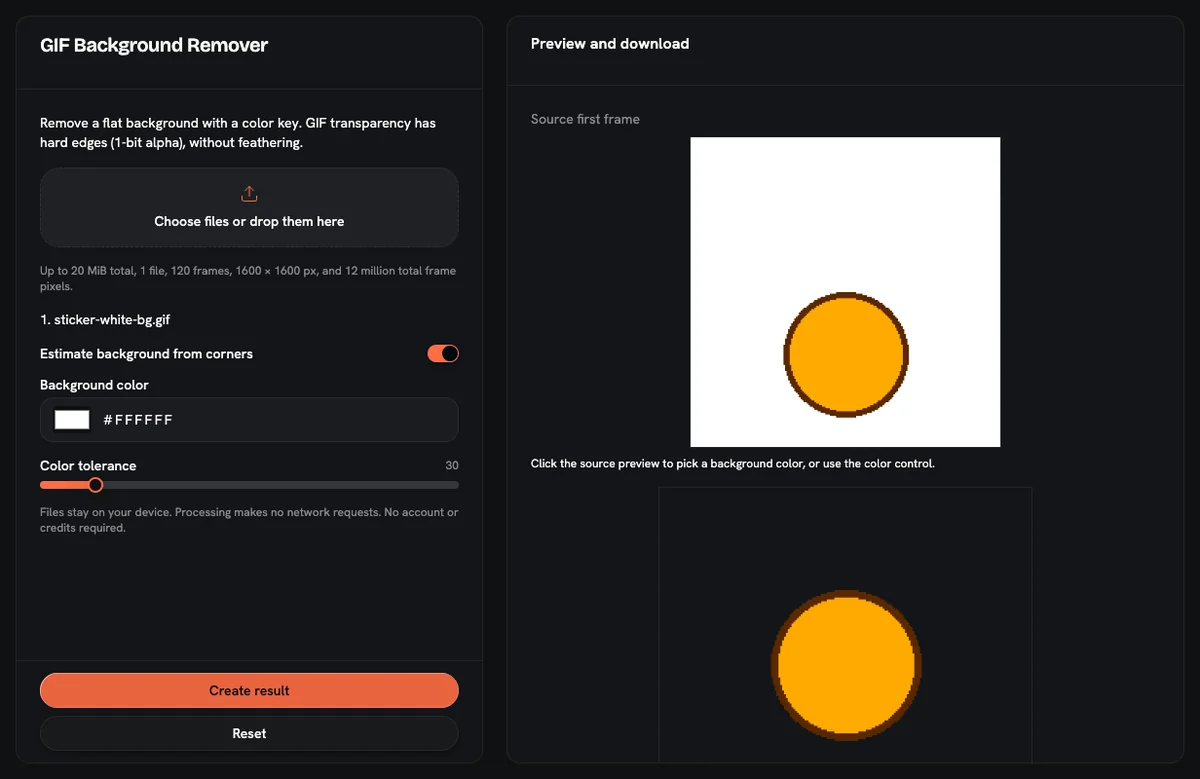
- Open the GIF in the tool. Drop the file onto the GIF background remover. The file is processed in your browser and is not uploaded to a server.
- Confirm the background color. Auto color is on by default. It reads the four corner pixels of the first frame and takes their middle value, so one corner covered by the subject does not throw it off. If the guess is wrong, pick the color yourself from that first frame. The manual color starts at white, #ffffff.
- Set the tolerance. The slider runs from 0 to 255 and starts at 30. Low values clear only colors very close to the key; high values also clear shades further away.
- Create the result and download it. The same color key runs on every frame. The loop setting and each frame's delay (stored in 1/100 s steps) carry over, so the timing stays the same.
- Test the file on two backgrounds before you post it. The checks are below.
Processing is cut off after 60 seconds, so a very long GIF may need trimming first.
Why do transparent GIF edges look jagged?
GIF transparency is 1-bit: each pixel is either fully clear or fully solid. The format has no partial opacity. Most GIFs were drawn or exported with anti-aliasing, so the subject's outline holds in-between pixels. Those pixels mix the subject color with the old background color.
A color key makes a yes-or-no call on each of those pixels. Pixels that stay form a thin outline tinted by the old backdrop. Pixels that go leave a stair-step edge. The remover does not feather or smooth that edge, because a GIF file cannot store the softer result.
What tolerance should I use?
Tolerance sets how close a pixel's color must be to the key color before it is removed. Every setting trades one failure for another:
- Too low: the in-between edge pixels survive. A GIF cut from white shows a pale halo once it sits on a dark page.
- Too high: the key eats into the subject wherever its colors resemble the backdrop. Highlights, light skin or pale clothing on a white source turn into holes. Those holes can flicker, because the subject moves across frames.
- A routine that works: start at 30. If a halo remains, raise the value by 10 and run it again. When holes appear inside the subject, go back one step and keep that value.
A color key also clears matching pixels that are nowhere near the edge. A white logo inside a white-backed GIF disappears along with the backdrop.
How do I check the result on dark and light backgrounds?
A transparent GIF can look clean on one background and broken on another. Check the download three ways:
- Dark background. Place it on a black slide or in a dark-mode chat. Light fringe from a white source shows up here.
- Light background. Place it on a white page. Dark fringe from a black or green source shows up here, and so do holes in the subject.
- Full loop. Watch every frame, not only the first. The key color comes from frame 1, so a later frame with different lighting can keep patches of backdrop.
If the GIF will always sit on one known color, judge it against that color first. A faint fringe that matches the destination is invisible to viewers.
When does a color key fail?
A color key is the wrong method in four common cases:
- Busy photo backgrounds: a street, a room or trees contain far too many colors for one key and one tolerance.
- Soft hair, smoke or motion blur: these edges are partly see-through in real life, and a 1-bit GIF cannot keep that.
- Subject and backdrop share a color: a white cat on a white sofa loses parts of itself at any tolerance that clears the sofa.
- Moving camera or changing light: the backdrop color drifts, and a key picked from frame 1 misses later frames.
For these GIFs, choose a different kind of tool. An AI background remover that cuts out each frame separately handles busy scenes. A video editor with masking lets you fix frames by hand. If you need soft edges in the final file, export to a format that stores partial transparency, such as animated WebP, APNG or video with an alpha channel. This remover outputs a GIF, so it cannot keep soft edges.
What should I do after removing the background?
Transparent GIFs often become chat emoji, stickers or stream overlays. Two follow-up steps help:
- Resize after the cutout. The resizer copies existing pixels instead of blending them, so the hard edge you got from the key stays clean at the new size. The GIF resizer has a Discord preset that outputs exactly 128 × 128 px and a Twitch preset at 112 × 112 px. Its default "contain" fit fills spare space with transparent padding.
- Shrink the file if it is too heavy. The GIF compressor cuts the color count (2 to 256), keeps 1 of every N frames, and scales the image down. Results vary by file, so compare the before and after sizes.
Discord's help center says custom emoji files must be under 256KB. The full emoji workflow is in how to resize a GIF for Discord emoji.
Frequently asked questions
Is there a free way to make an animated GIF transparent?
A flat GIF background can be removed for free with a browser color-key tool, with no account and no credits. The remover here accepts GIFs up to 20 MB and 120 frames, and the same key runs on every frame.
What causes a white halo around a transparent GIF?
A white halo comes from anti-aliased edge pixels that the color key kept. GIF transparency is on or off per pixel, so blended edge pixels cannot fade out. Raise the tolerance by 10 at a time until the halo fades, before the subject loses pixels.
Can a GIF have soft or semi-transparent edges?
A GIF file cannot store soft or semi-transparent edges; every pixel is fully clear or fully solid. For feathered edges, export to a format with partial transparency, such as animated WebP or APNG, using a tool that supports it.
What should I use for a GIF with a busy photo background?
A busy photo background needs a frame-by-frame AI cutout tool or a video editor with masking, not a color key. One key color and one tolerance cannot match a scene with many colors, and the key would also remove subject pixels.
Will removing the background change the GIF's speed or loop?
Background removal here keeps the original loop setting and each frame's delay, stored in 1/100 s steps. Only the keyed pixels change, so the animation plays at the same pace.
AnimateImage runs these GIF tools free in the browser, alongside its image-to-video generator.