
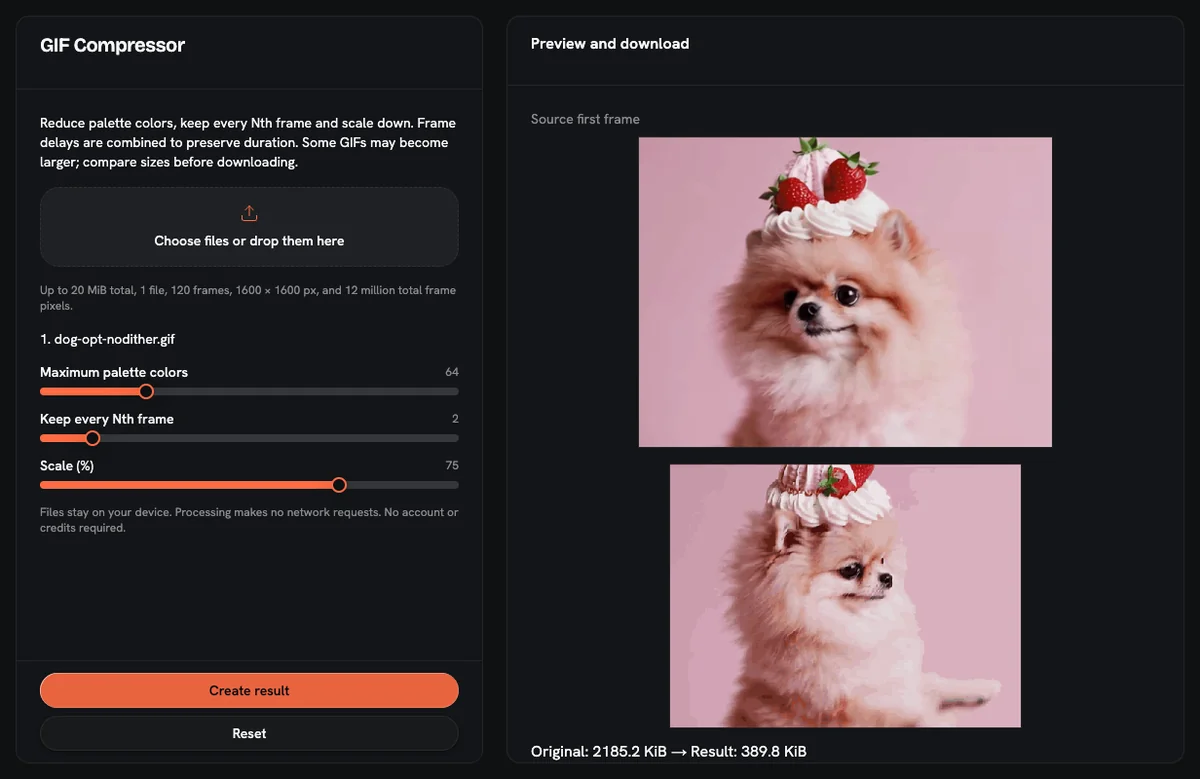
To compress a GIF without visible loss, run it through the free GIF compressor at 64 colors, every 2nd frame and 75% scale, then back off whichever setting causes damage you can see. The tool shows the original and new file size after each run, so you can compare before you download. Processing happens in your browser: the file is not uploaded, and you need no account and no credits.
"Without losing quality" here means the result looks the same as the original when both play at the size people will see them. It does not mean identical pixels. Every control in this compressor removes data (colors, frames or pixels), so a GIF kept at 256 colors, every frame and 100% scale barely shrinks. Lossless optimizers only rewrite how the same pixels are stored, so their saving is capped by whatever waste the file already carries.
Quick answer: which setting to lower first?
The cheapest setting depends on what is inside the GIF. Lower the first lever, check the result, and only then touch the second.
| GIF type | Lower first | Starting value | Then | Keep high |
|---|---|---|---|---|
| Screen recording, UI demo, flat graphic | Colors | 64, then 32 | Keep every 2nd frame | Scale, so text stays readable |
| Photo, video clip, gradients | Scale | 75%, then 50% | Keep every 2nd frame | Colors at 128 to 256 |
| Pixel art, sprites | Colors | The art's own count, such as 16 or 32 | Nothing else if possible | Scale at 100%, every frame kept |
| Emoji or sticker | Pixel size, in the resizer | 128 × 128 Discord preset | Colors at 64 | Frame timing |
Why each kind of GIF loses quality differently
Flat graphics and screen captures are built from a small set of solid colors. Cutting the palette to 64 or 32 removes shades the frames barely used, so the change is hard to spot. Scale is the risky lever here, because small interface text blurs as frames shrink.
Photos and video clips spread across many shades. Dropping them to 64 colors turns smooth skies and skin into visible bands. Scale costs less on this content: at 75%, each frame keeps about 56% of its pixels (0.75 × 0.75), and fine texture is the main thing you give up.
Pixel art depends on hard pixel edges. A fractional scale such as 75% cannot map every source pixel to whole output pixels, so edges turn uneven. If the art was drawn with 16 colors, setting the palette to 16 removes very little of what you drew.
Frame skipping works the same way for every type. Keeping every 2nd frame halves the frame count, and the compressor adds each dropped frame's time to the frame it keeps. The loop therefore runs as long as before, but motion gets choppier: two 40 ms frames become one 80 ms frame. Slow movement hides this well; fast action shows it.
How to compress a GIF step by step
- Check that the file fits. The compressor takes a GIF up to 20 MB, 120 frames and 1600 px per side, with no more than 12 million pixels across all frames.
- Run the defaults once. Use 64 colors, keep every 2nd frame and 75% scale. If the new size is under your target and the result looks right, download it.
- Reset to the no-loss position. Set 256 colors, keep every frame (value 1) and 100% scale. This is your baseline, and it will barely change the file.
- Lower the first lever by one step. Pick it from the table above. Useful steps for colors are 256, 128, 64, 32 and 16. For scale, try 100%, 90%, 75%, 60% and 50%. For frames, go from 1 to 2, then 3.
- Compare at viewing size. Play the result next to the original at its real display size. Check gradients for banding, small text for blur, and fast motion for jumps.
- Switch levers when damage appears. Move the first lever back one step, then start lowering the second lever the same way.
- Keep the original file. Each lossy pass discards more data, so retry from the original, not from a compressed copy.
Loop settings carry over from the source GIF, and frame delays are kept in steps of 1/100 second.
How to reduce GIF file size to a set limit like 256KB
The compressor has no target-size box, so you cannot type a number and get a file of that size. Use the after-size readout as your gauge and walk the steps above until you land under the limit.
When the display size is fixed, set the pixel size first. The GIF resizer has a Discord preset that outputs exactly 128 × 128 and a Twitch preset that outputs 112 × 112. Resizing alone does not promise a small file, so run the compressor afterward. Discord's help center says custom emoji files must be under 256KB. The full routine for that case is in how to resize a GIF for a Discord emoji.
What to do when the GIF does not get smaller
A bigger or unchanged result is possible, so read the before and after numbers on every run. If they barely differ, work through these checks in order:
- Confirm that a lever moved. At 256 colors, every frame and 100% scale, there is almost nothing left to remove.
- Try a lever you have not touched. On a screen recording, keep every 2nd frame; on a photo GIF, try 50% scale.
- Match the real display size. A GIF shown in a small chat or page slot does not need frames 1600 px wide, so resize it to the slot first.
- Rebuild from the source frames. If you still have the original PNG frames, rebuilding avoids squeezing an already compressed GIF a second time. The PNG to GIF tool takes up to 60 PNGs and one interval for all frames, from 20 to 2000 ms. The steps are in how to make a GIF from PNG images.
- Question the format. If the file only fits once damage is visible, the GIF format itself is the limit. A looping video file is a different trade-off, not a better GIF, and places that only take GIFs will refuse it (Discord's help center lists GIF as the format for animated emoji). None of the six free GIF tools here convert to video.
Frequently asked questions
Can you compress a GIF with no quality loss at all?
Truly lossless GIF compression can only remove waste already in the file, so the saving is limited. The compressor here is lossy by design, and at 256 colors, every frame and 100% scale it barely changes the size. Aim for no visible loss instead.
Which setting reduces GIF size with the least visible change?
The least visible setting depends on content: colors for screen recordings and flat art, scale for photos and video clips. Frame skipping comes second for both, because the loop length stays the same while motion gets choppier.
Why is my compressed GIF the same size or bigger?
A GIF that is already tightly encoded can come out the same size or larger after re-encoding. The compressor does not guarantee a smaller file, so lower a lever you have not touched, or resize to the exact display size first.
Does a free online GIF compressor have to upload my file?
The GIF compressor on this site never uploads your file; frames are processed locally in your browser. No account is needed and no credits are used.
My GIF is too big for the browser tool. What now?
A GIF over the browser limits needs trimming or resizing before it fits: the ceiling is 20 MB, 120 frames, 1600 px on each side and 12 million pixels across all frames. Cut frames or shrink the canvas in an installed image editor first, then bring the smaller file back for color and frame tuning.
All six AnimateImage GIF tools run in the browser, free and without an account.